Make sure that LOOPBACK CHECK is disabled, To disable the loopback check. follow these steps:
1. Click Start, click Run, type regedit, and then click OK.
2. In Registry Editor, locate and then click the following registry key:HKEY_LOCAL_MACHINE\SYSTEM\CurrentControlSet\Control\Lsa
3. Right-click Lsa, point to New, and then click DWORD Value.
4. Type DisableLoopbackCheck, and then press ENTER.
5. Right-click DisableLoopbackCheck, and then click Modify.
6. In the Value data box, type 1, and then click OK.
7. Quit Registry Editor, and then restart your computer.
Note: This also helps in fixing calling custom web services in InfoPath form which returns with null/no data
Friday, October 15, 2010


Thursday, October 14, 2010
Web Part Page Maintenance
All I know was use my book marked Manage Web Part Page URL from my IE favorites to bring up maintenance page to fix the web part.
http://<site>/_layouts/spcontnt.aspx?&url=default.aspx
by change the site and url parameter.
But lately found out that if you add the ?contents=1 to your page at the end, system will build the manage webpart maintenance page!! How cool is that?
http://<site>/_layouts/spcontnt.aspx?&url=default.aspx
by change the site and url parameter.
But lately found out that if you add the ?contents=1 to your page at the end, system will build the manage webpart maintenance page!! How cool is that?
Tuesday, October 12, 2010
SharePoint 2010 Installation on Windows 7
Fallow this great link http://msdn.microsoft.com/en-us/library/ee554869(office.14).aspx
But you need to skip few things:
1. Step 2: Install the Prerequisites for SharePoint 2010: No need to extract etc. once you have your .ISO
Add the following line inside the tag under files\Setup\config.xml
2. Step 3: Install SharePoint 2010: Skip Install SQL Server 2008 KB 970315 x64 if you already have SQL Server 2008. (this will install SQL Express DB Instance "SHAREPOINT")
Note:
1. While Installing SQL Server 2008, Create SQL Instance as "SHAREPOINT"
2. Install right through .ISO file , no need to download single compressed executable file named SharePointFoundation.exe for SharePoint Foundation 2010 and setup.exe for SharePoint Server 2010.
3. Try to avoid installing 64bit office , if you have 64bit Win7, go with 32bit office much stable.
But you need to skip few things:
1. Step 2: Install the Prerequisites for SharePoint 2010: No need to extract etc. once you have your .ISO
Add the following line inside the
2. Step 3: Install SharePoint 2010: Skip Install SQL Server 2008 KB 970315 x64 if you already have SQL Server 2008. (this will install SQL Express DB Instance "SHAREPOINT")
Note:
1. While Installing SQL Server 2008, Create SQL Instance as "SHAREPOINT"
2. Install right through .ISO file , no need to download single compressed executable file named SharePointFoundation.exe for SharePoint Foundation 2010 and setup.exe for SharePoint Server 2010.
3. Try to avoid installing 64bit office , if you have 64bit Win7, go with 32bit office much stable.
Monday, September 20, 2010
Hiding the context menu Options/Items
Add the Content Editor web part, add below code to it.(remove items which you want to see!!)
<script type="text/javascript">
function CAMOpt(p,wzText,wzAct,wzISrc,wzIAlt,wzISeq,wzDesc)
{
var mo=CMOpt(wzText,wzAct,wzISrc,wzIAlt,wzISeq,wzDesc);
if(!mo)return null;
if(wzText != "View Properties")
if(wzText != "Edit Properties")
if(wzText != "Manage Permissions")
if(wzText != "Edit Document")
if(wzText != "Delete")
if(wzText != "Send To")
if(wzText != "Check Out")
if(wzText != "Version History")
if(wzText != "View Workflow History")
if(wzText != "Schedule Workflows")
if(wzText != "Alert Me")
AChld(p,mo);
return mo;
}
</script>
<script type="text/javascript">
function CAMOpt(p,wzText,wzAct,wzISrc,wzIAlt,wzISeq,wzDesc)
{
var mo=CMOpt(wzText,wzAct,wzISrc,wzIAlt,wzISeq,wzDesc);
if(!mo)return null;
if(wzText != "View Properties")
if(wzText != "Edit Properties")
if(wzText != "Manage Permissions")
if(wzText != "Edit Document")
if(wzText != "Delete")
if(wzText != "Send To")
if(wzText != "Check Out")
if(wzText != "Version History")
if(wzText != "View Workflow History")
if(wzText != "Schedule Workflows")
if(wzText != "Alert Me")
AChld(p,mo);
return mo;
}
</script>
Monday, October 12, 2009
Turn off the "Powered by: InfoPath Forms Services" logo in Forms Server 2007
Tired of getting rid of default Line and "Powered by: InfoPath Forms Services " display from Form Server 2007!
It's render by "ifsmain.css" from "C:\Program Files\Common Files\Microsoft Shared\Web Server Extensions\12\TEMPLATE\LAYOUTS\INC"

To determine whether the logo is turned on or whether the logo is turned off, run the following SQL script.
stsadm -o getformsserviceproperty -pn AllowBranding
To turn off the logo, run the following SQL script:
stsadm -o setformsserviceproperty -pn AllowBranding -pv false
Incase if you want it back, To turn on the logo, run the following SQL script:
stsadm -o setformsserviceproperty -pn AllowBranding -pv true
It's render by "ifsmain.css" from "C:\Program Files\Common Files\Microsoft Shared\Web Server Extensions\12\TEMPLATE\LAYOUTS\INC"

To determine whether the logo is turned on or whether the logo is turned off, run the following SQL script.
stsadm -o getformsserviceproperty -pn AllowBranding
To turn off the logo, run the following SQL script:
stsadm -o setformsserviceproperty -pn AllowBranding -pv false
Incase if you want it back, To turn on the logo, run the following SQL script:
stsadm -o setformsserviceproperty -pn AllowBranding -pv true
Tuesday, June 30, 2009
Thanks to Lytebox!
In a nutshell Lytebox improved version of Lightbox class that embed media and presents in a rich end user experience. Read more at http://www.huddletogether.com/2007/04/16/lightbox-203-released/
And http://www.dolem.com/lytebox/
Let's get into Share Point Integration:
1. Create a document library which can be used for Centralized sharing purpose.
2. Download Lytebox v3.22 http://www.dolem.com/lytebox/lytebox_v3.22.zip
3. Upload lytebox. Js , lytebox.css & Images into above created document library.
4. I took a power point presentation and converted all the slides into .jpg (Image) files
5. Upload all those Image files into another document library (I called it Help, since I was dealing with help docs to present in a very rich user experience.)
Note: Name the Image files such a way that you can related it back to your slides
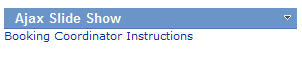
Ex: Presentation Name_Slide number ==> Booking Coordinator Instructions_1.jpg
6. Add Content Editor web part.
7. Now Lytebox Includes
<script language="javascript" src="/Documents/Overlay/lytebox.js" type="text/javascript"></script>
<link media="screen" href="/Documents/Overlay/lytebox.css" type="text/css" rel="stylesheet">
8. Now add Images for slide show; we need to use "LYTESHOW" as REL attribute

9. Hit save and exit from the edit mode of the page.
10. End results on the Pages.
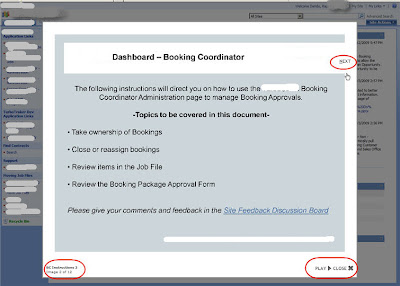
11. User Experience after launching the link.
Some other Usage of this great class:
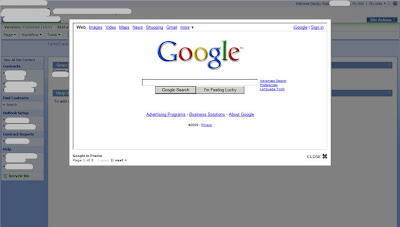
You can have external page displayed as overlay.
1. Add this code (assumption is that you already added step 7)

2. Results on Share Point Page

3. Google Search Results
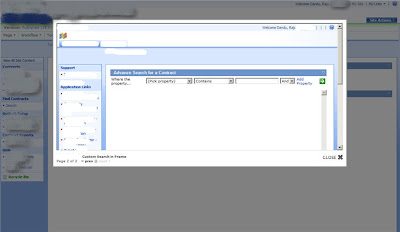
4. Custom Search page.
And http://www.dolem.com/lytebox/
Let's get into Share Point Integration:
1. Create a document library which can be used for Centralized sharing purpose.
2. Download Lytebox v3.22 http://www.dolem.com/lytebox/lytebox_v3.22.zip
3. Upload lytebox. Js , lytebox.css & Images into above created document library.
4. I took a power point presentation and converted all the slides into .jpg (Image) files
5. Upload all those Image files into another document library (I called it Help, since I was dealing with help docs to present in a very rich user experience.)
Note: Name the Image files such a way that you can related it back to your slides
Ex: Presentation Name_Slide number ==> Booking Coordinator Instructions_1.jpg
6. Add Content Editor web part.
7. Now Lytebox Includes
<script language="javascript" src="/Documents/Overlay/lytebox.js" type="text/javascript"></script>
<link media="screen" href="/Documents/Overlay/lytebox.css" type="text/css" rel="stylesheet">
8. Now add Images for slide show; we need to use "LYTESHOW" as REL attribute

9. Hit save and exit from the edit mode of the page.
10. End results on the Pages.

11. User Experience after launching the link.

Some other Usage of this great class:
You can have external page displayed as overlay.
1. Add this code (assumption is that you already added step 7)

2. Results on Share Point Page

3. Google Search Results

4. Custom Search page.

Thursday, April 30, 2009
Dynamic Charts for Free!!
Thanks to Google Chart API.
API will return the PNG format image in response to a URL, Advantage! Now you can render several types of images
Including Line charts, Bar charts, Pie charts, Venn diagrams, Scatter plots, Radar charts, Maps ,Google-o-meters & QR codes.
API URL must be in the following format:
http://chart.apis.google.com/chart?&&
Where:
http://chart.apis.google.com/chart? is the Chart API's location.
& separates parameters.
chs=250x100 is the chart's size in pixels.
chd=t:60,40 is the chart's data.
cht=p3 is the chart's type.
chl=HelloWorld is the chart's label.
Results:

Steps:
1. Choose the List
2. Create a Group By View on that List.
3. Now Create a new web part page
4. Add the List to this web part page (Selected List in step 1)
i. Set the current view to Group by new which we created in the step 2
ii. Then Under the Layouts choose/check the Hidden
5. Add the Content Editor web part to the same web part page.
6. Copy below code & you are done!!.
<div id="PieChart" class="content"><strong>Pie Chart Using Google Charting API</strong></div>
<script type="text/javascript">
if(typeof jQuery=="undefined")
{
var jQPath="http://ajax.googleapis.com/ajax/libs/jquery/1.3.2/";
document.write("<script src='",jQPath,"jquery.js' type='text/javascript'><\/script>");
}
</script>
<script type="text/javascript">
$("document").ready(function(){
var arrayList=$("td.ms-gb:contains(':')");
var cord= new Array();
var lblTxt= new Array();
$.each(arrayList, function(i,e)
{
var varIf= $(e).text();
var CordTxt= varIf.substring(varIf.indexOf('(')+1,varIf.length-1); // Extract the 'Y' coordinates
cord[i]=CordTxt;
var LabelTxt= varIf.substring(varIf.indexOf(':')+2,varIf.indexOf("(")-1); // Extract the labels
lblTxt[i]=LabelTxt+"("+CordTxt+")"; //add also coordinates for better read
});
var CordTxt= cord.join(",");
var LabelTxt= lblTxt.join("");
var APIurlWithValues= "<IMG src='http://chart.apis.google.com/chart?cht=p3&chs=750x200&chd=t:"+CordTxt+"&chl="+LabelTxt+"'/>";
$("#PieChart").append("<p>"+APIurlWithValues+"</p>")});
</script>
API will return the PNG format image in response to a URL, Advantage! Now you can render several types of images
Including Line charts, Bar charts, Pie charts, Venn diagrams, Scatter plots, Radar charts, Maps ,Google-o-meters & QR codes.
API URL must be in the following format:
http://chart.apis.google.com/chart?
Where:
http://chart.apis.google.com/chart? is the Chart API's location.
& separates parameters.
chs=250x100 is the chart's size in pixels.
chd=t:60,40 is the chart's data.
cht=p3 is the chart's type.
chl=HelloWorld is the chart's label.
Results:

Steps:
1. Choose the List
2. Create a Group By View on that List.
3. Now Create a new web part page
4. Add the List to this web part page (Selected List in step 1)
i. Set the current view to Group by new which we created in the step 2
ii. Then Under the Layouts choose/check the Hidden
5. Add the Content Editor web part to the same web part page.
6. Copy below code & you are done!!.
<div id="PieChart" class="content"><strong>Pie Chart Using Google Charting API</strong></div>
<script type="text/javascript">
if(typeof jQuery=="undefined")
{
var jQPath="http://ajax.googleapis.com/ajax/libs/jquery/1.3.2/";
document.write("<script src='",jQPath,"jquery.js' type='text/javascript'><\/script>");
}
</script>
<script type="text/javascript">
$("document").ready(function(){
var arrayList=$("td.ms-gb:contains(':')");
var cord= new Array();
var lblTxt= new Array();
$.each(arrayList, function(i,e)
{
var varIf= $(e).text();
var CordTxt= varIf.substring(varIf.indexOf('(')+1,varIf.length-1); // Extract the 'Y' coordinates
cord[i]=CordTxt;
var LabelTxt= varIf.substring(varIf.indexOf(':')+2,varIf.indexOf("(")-1); // Extract the labels
lblTxt[i]=LabelTxt+"("+CordTxt+")"; //add also coordinates for better read
});
var CordTxt= cord.join(",");
var LabelTxt= lblTxt.join("");
var APIurlWithValues= "<IMG src='http://chart.apis.google.com/chart?cht=p3&chs=750x200&chd=t:"+CordTxt+"&chl="+LabelTxt+"'/>";
$("#PieChart").append("<p>"+APIurlWithValues+"</p>")});
</script>
Subscribe to:
Posts (Atom)